Help centerCalendar
Add an income or expense
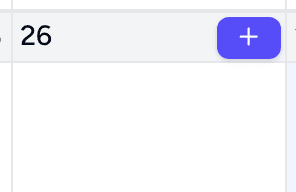
Add a one-time income or expense to your calendar with Add Event, or with the plus button on a day.
WebiPhoneAndroid
A one-time transaction is a single income or expense on one date, like a refund or a car repair. For something that repeats, use the Recurring switch described under Good to know.
- Click Add Event at the top of the calendar. To start from a day, point at it and click the plus button on the right of its date strip.
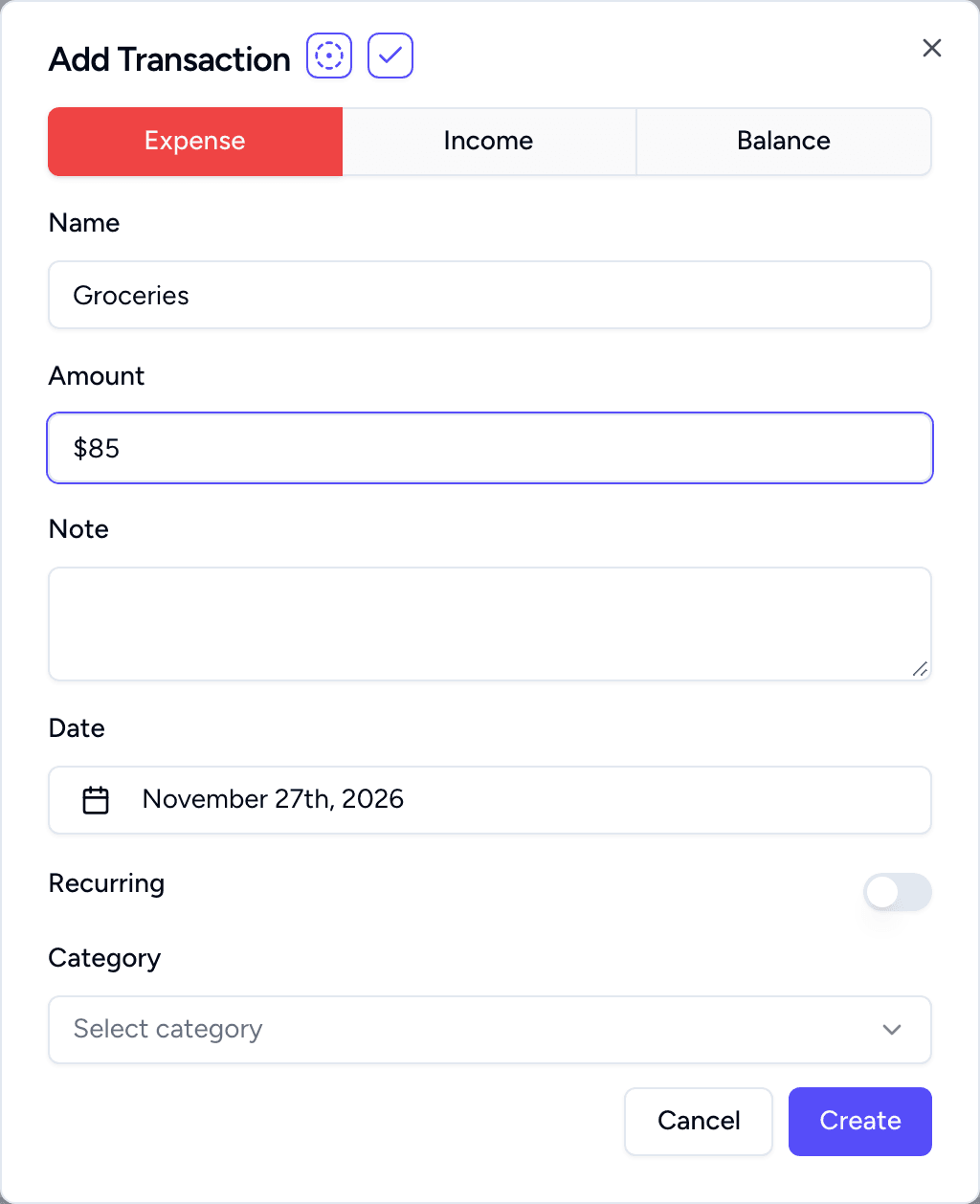
- In the Add Transaction window, choose Expense or Income at the top.
- Type a Name, like "Car repair".
- Enter the Amount. Type it as a positive number. The button you chose decides whether it is added or subtracted.
- Check the Date. Change it if the transaction is on another day.
- Pick a Category if you want one. You can add a Note too.
- Click Create.
The transaction appears on its day, and the balance for that day and every day after it updates.
On mobile: tap the add transaction button in the tab bar, then fill in the same fields.
Good to know
- Next to the window title, two small icon buttons mark the transaction. Point at one to see its name. Mark as Pending is for money that has not cleared yet. Mark as Cleared is for money that has.
- Recurring is a switch in the same window. Leave it off for a one-time transaction. Turn it on to repeat the transaction on a schedule.
- You can change any of these fields later by clicking the transaction on the calendar.
- The Balance button is not for transactions. It sets your balance on a day. See "My balance looks wrong".

