Help centerBank connections






Reconnect a bank that stopped syncing
Click Reconnect on the red banner or on the Banks section of your Account page, sign in at your bank again, and the same accounts start syncing again.
WebiPhoneAndroid
When a bank asks you to sign in again, the calendar warns you and the balance stops moving. Reconnecting fixes it without adding duplicate accounts.
From the calendar
- Open the calendar. A red message at the top names the bank, for example "Chase stopped syncing".
- Click Reconnect followed by the bank's name.
- Sign in at your bank in the window that opens, and approve access.

On mobile: tap Reconnect followed by the bank's name on the banner at the top of the calendar.
From the Account page
Use this if you do not see the banner, or you have more than one bank to fix.
- Open the account menu in the sidebar and click Account.
- Scroll to Banks. A bank that needs repair shows Needs attention.
- Click Reconnect on that bank, then sign in at your bank.
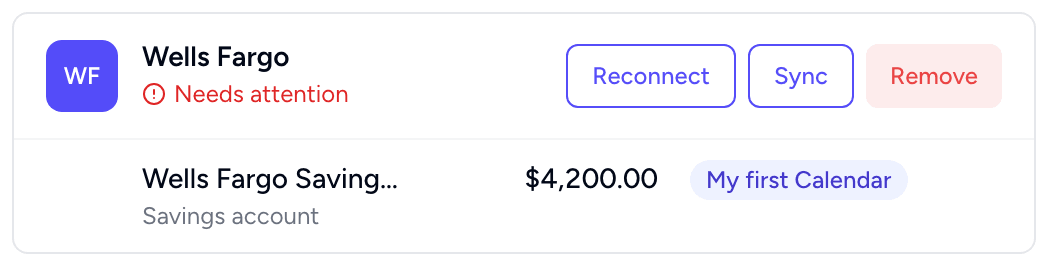
On mobile: tap your avatar at the top to open Account, then Banks, then Reconnect followed by the bank's name.
When you finish, the bank syncs and the message goes away.
Good to know
- Reconnecting keeps the same accounts and the same calendars. Nothing is added or removed.
- Some banks show their own page where you pick accounts. Tick every account you want to keep, because an account left unticked stops syncing.
- If you revoked access at your bank, or the bank is no longer supported, signing in again cannot fix it. The banner then shows Connect a bank via (Connect a bank on mobile), and you set the bank up again.
- If the balance drifted while the bank was disconnected, see "My balance looks wrong".

