Help centerTroubleshooting
My balance looks wrong
Add a balance adjustment for today with the amount your bank shows; you do not need to reconnect your bank.
WebiPhoneAndroid
Why this happens
Your starting balance is set once, on the day you connect a bank or enter it yourself. After that the calendar adds and subtracts transactions from it. A fee, a refund, a cash withdrawal or a deleted transaction can make it drift from your bank.
How to fix it
- Open your banking app and note today's balance.
- Click Add Event at the top of the calendar. Keep today's date.
- Choose Balance at the top of the window.
- Leave Calculate adjustment based on previous transactions ticked.
- Enter your bank's balance in Day Balance, then click Create.
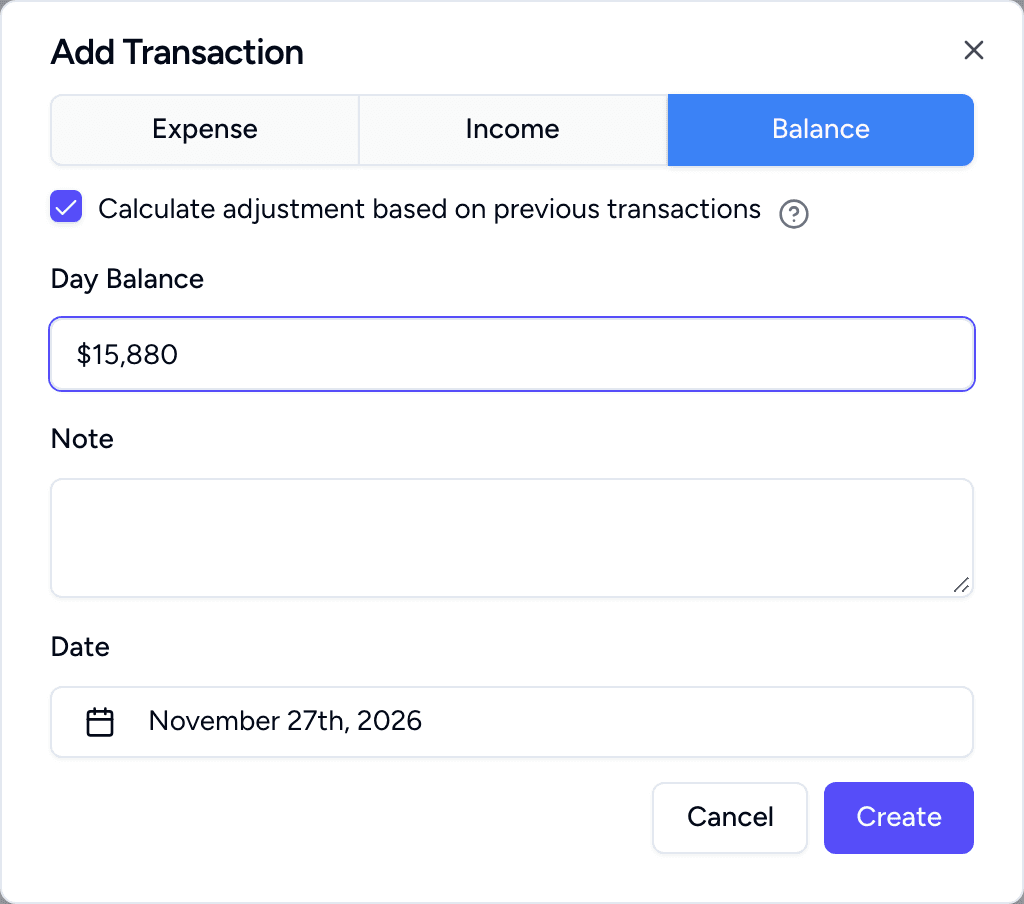
On mobile: tap the add transaction button in the tab bar and choose Balance. Leave Calculate from previous transactions on and enter the amount in Day Balance.
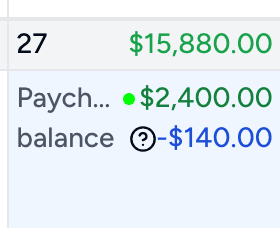
The calendar adds an adjustment for the difference. Today's balance now matches your bank, and the forecast for every day after it moves with it.
Good to know
- An adjustment only changes the balance. It does not count toward your budgets.
- Reconnecting the bank does not fix drift and can bring in duplicate transactions.
- If the balance is off by one transaction, look for a planned item to match to the bank's version first. See "Why a transaction shows twice after connecting a bank, and how matching fixes it".
- If you connected a bank, a purchase from this morning may not be in yet. Click Sync in the Banks section of your Account page to pull it in now.

