Help centerMatching
Match a bank transaction to a planned one, and unmatch
Pair a bank transaction with the planned one it paid so the payment counts once, and click Unmatch to separate them again.
WebiPhoneAndroid
When your bank posts a payment you already planned, the two can show up as separate transactions. Matching pairs them so the payment counts once. You need a connected bank.
Match two transactions
- Click the planned transaction on the calendar. Click a bank transaction instead if you want to start from the bank side.
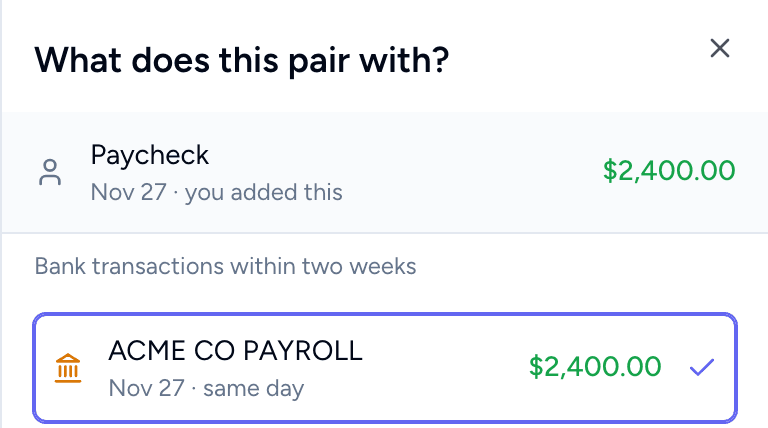
- Click Match at the bottom of the window. The sheet is titled What does this pair with?
- Click the transaction it pairs with. A tick appears. Under Bank transactions within two weeks, pick every bank row that is part of the same payment.
- Click Match. A confirmation appears for a few seconds.
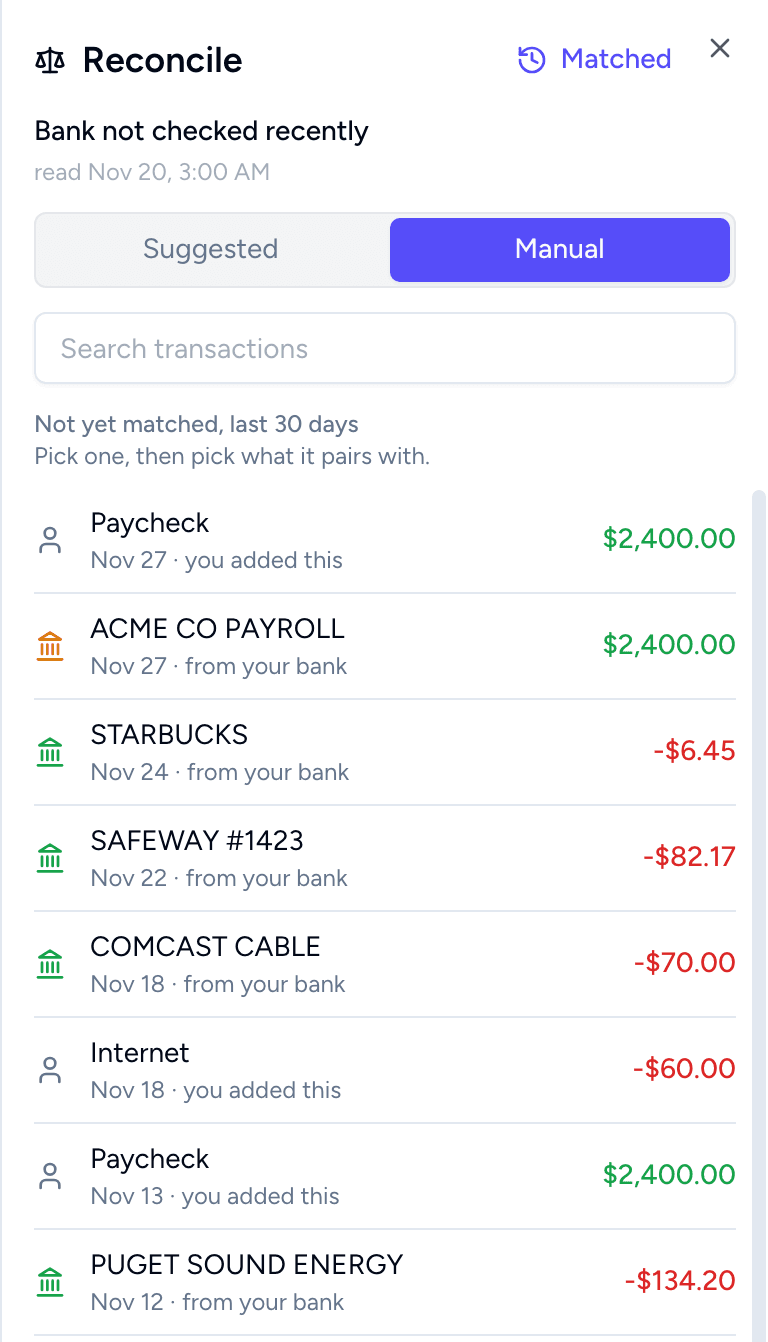
To pick from a list instead, click Reconcile at the top of the calendar and open the Manual tab. Search, or choose a transaction from Not yet matched, last 30 days. Then follow steps 3 and 4.
Unmatch
Right after matching, click Undo in the confirmation. Later:
- Click Reconcile at the top of the calendar.
- Click Matched at the top right of the sheet.
- Find the match and click Unmatch.
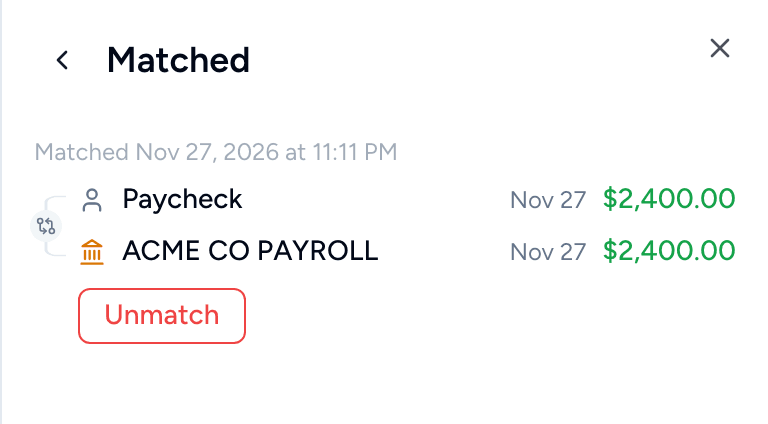
The two transactions go back to being separate.
Good to know
- Nothing is picked for you. If several bank rows fit, you choose which ones.
- Recurring series, balance adjustments and transactions that are already matched cannot be matched again until you unmatch them.
- Unmatching puts the payment back to counting twice, so match it again or delete the extra one.
- On mobile, tap where these steps say click. The same names appear in the Reconcile sheet.

